How to find a product on Chinese marketplaces and add it to your cart
Type what you want in English, or paste a product or store link, into the search box on the home page. JTLGO searches the marketplace in Chinese for you. Open a product, check the USD estimate, choose its options and add it to your cart. Product details need a free account.
Where to find it on the site
- Shopping
On a phone, these are in the menu at the top right.
Have these ready
- A product name in English, a product link, or a photo
- A JTLGO account to open product details
-
Step 1: Search by name, link or photo
Use the search box on the home page. Taobao, 1688, JD and Xianyu can be searched here. For other apps and shops, send the product link instead.
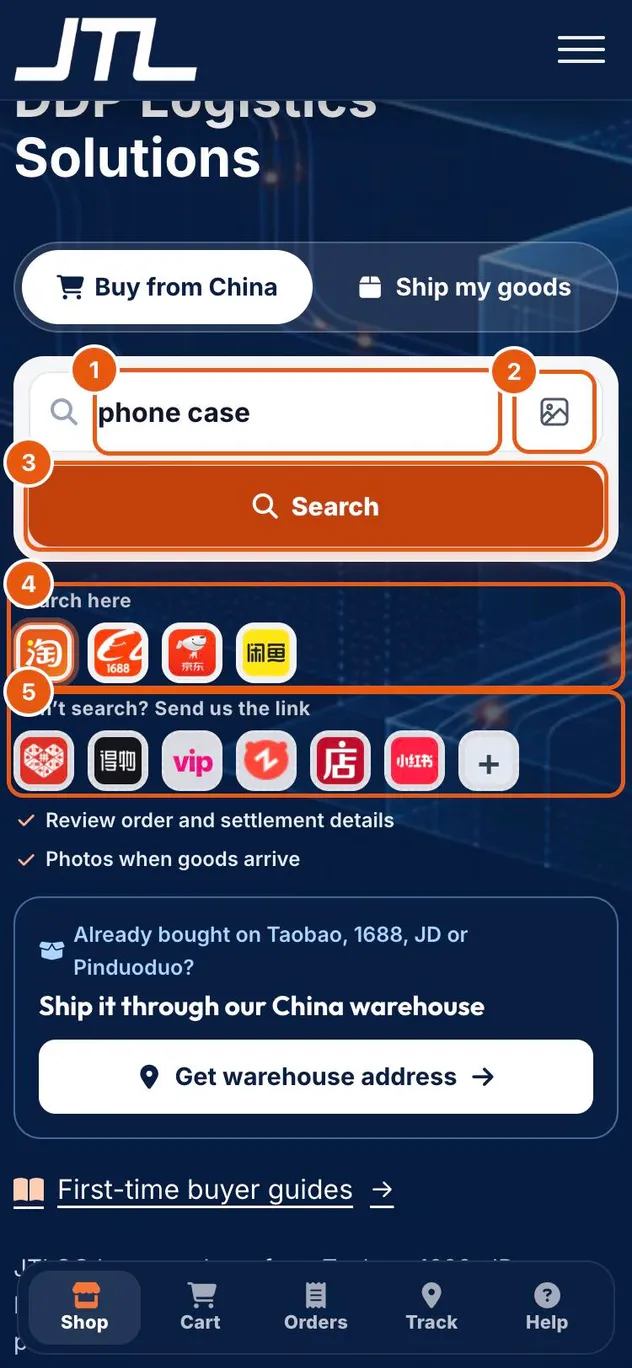
- Type a product name in English, or paste a product or store link.
- Image search: search with a photo of the product.
- Search.
- Search here: Taobao, 1688, JD and Xianyu.
- Can't search? Send us the link: Pinduoduo, Dewu, Vipshop, Zhuanzhuan, Weidian, Xiaohongshu and other apps or shops.
-
Step 2: Read the results
Results are live marketplace listings with English titles and USD prices. The first results can take a few seconds while the listings are read.
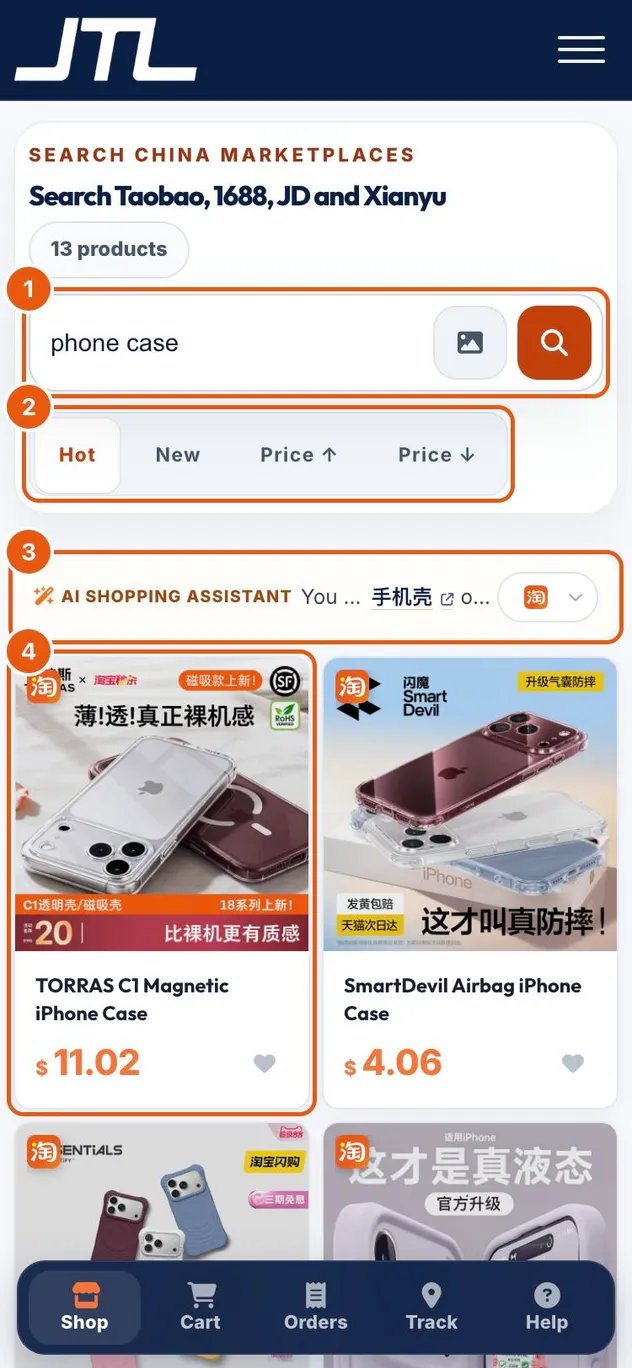
- Change the search here.
- Sort by Hot, New, or price low to high or high to low.
- The shopping assistant shows the Chinese search term it used, and lets you switch marketplace.
- Tap a product to open its details.
-
Step 3: Check the product and the USD estimate
The product opens in a Confirm item before cart panel. Check the title, the photos and the estimate, then choose the options below it, such as colour or size, and add the item to your cart.
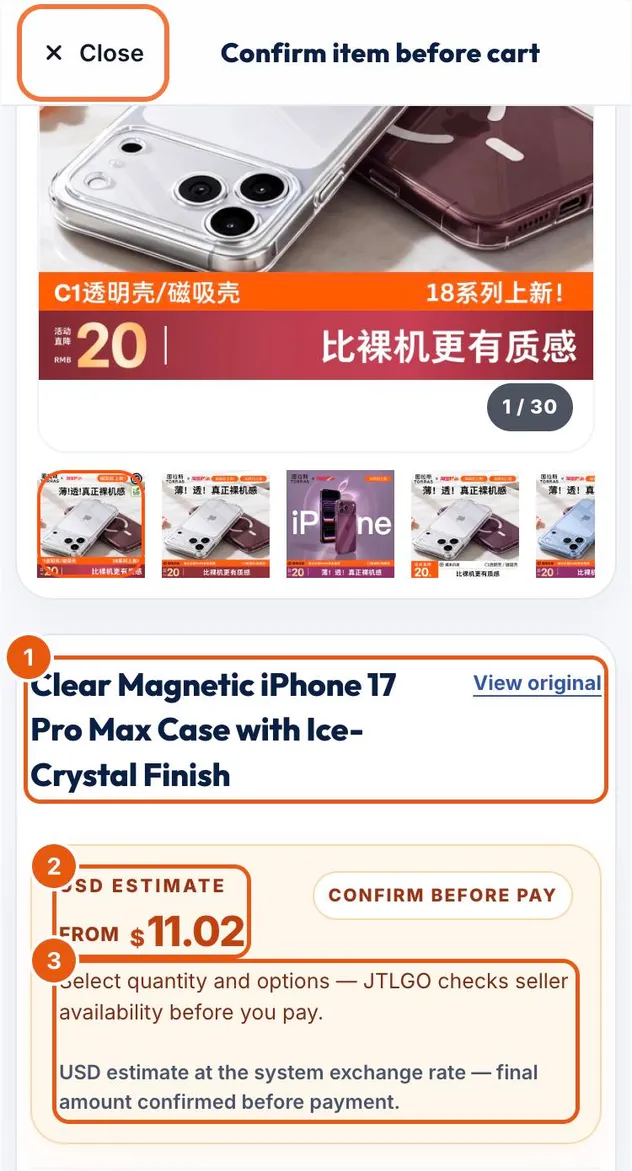
- The English title. View original shows the seller's original listing.
- USD estimate: the starting price at the system exchange rate.
- JTLGO checks seller availability before you pay, and the final amount is confirmed before payment.
Tip: If the seller does not publish a price for an option, JTLGO confirms the USD amount before payment. Buy a mix lets you add several options at once.
What happens next
Items in your cart become an order at checkout. You pay the goods and the purchasing fee first; international freight is billed after the warehouse weighs the parcel.
Common questions
Why do I need an account to see product details?
Variants, full specifications and purchase options are available to signed-in JTLGO members. Creating an account is free.
The product I want is on Pinduoduo or another app. What do I do?
Those platforms cannot be searched here. Copy the product link and send it to us through the icons under Can't search? Send us the link.
Is the USD price final?
No. It is an estimate at the system exchange rate. The final amount is confirmed before payment.
Related
Was this page helpful?
Still stuck? Send us a link to this page and tell us which step you’re on.
Contact support