Connect your WooCommerce store to JTLGO
In your JTLGO account, open Store connections, choose WooCommerce, enter your store address and click Connect WooCommerce store. Your WordPress admin opens; approve the access request there. You come back to JTLGO and the store shows as Connected.
Where to find it on the site
- Account
On a phone, these are in the menu at the top right.
Have these ready
- A JTLGO account with a verified email
- A WooCommerce store on an https:// address
- A WordPress login that can manage WooCommerce (Administrator or Shop manager)
-
Step 1: Enter your store address
Under Account › Store connections, choose WooCommerce, type the address of your store and click Connect WooCommerce store.
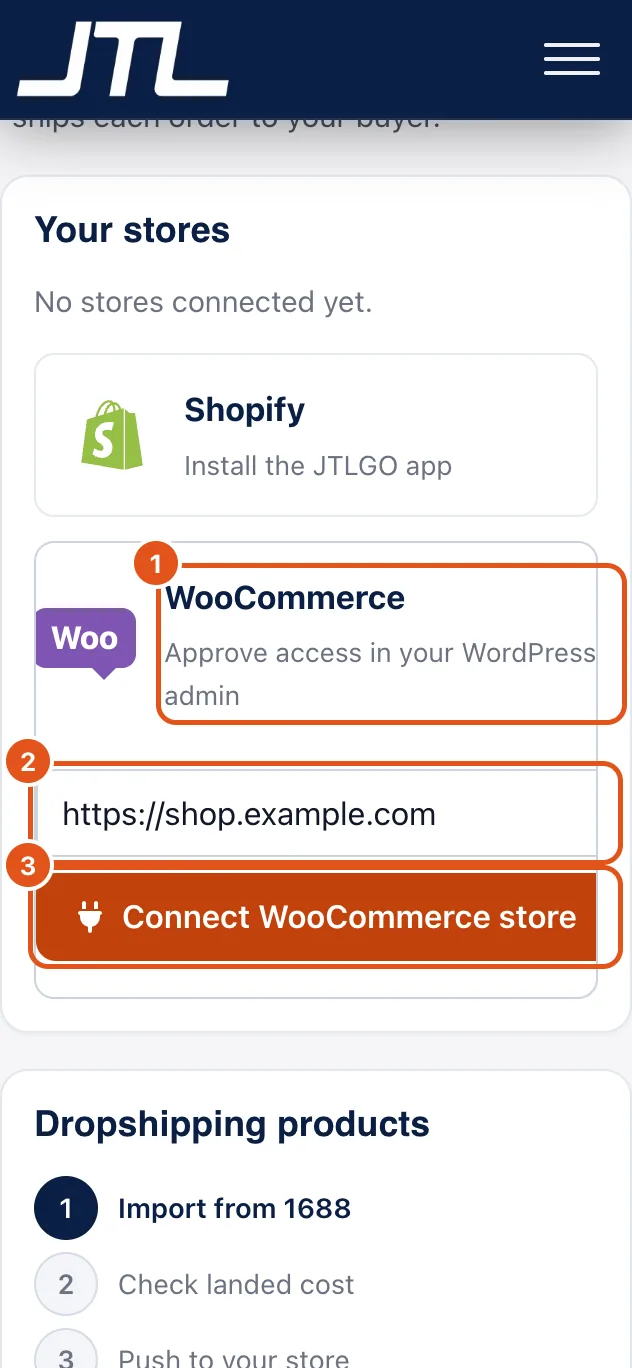
- Choose WooCommerce.
- Your store address, starting with https://. If the shop lives in a folder, include it, for example https://example.com/shop.
- Connect WooCommerce store opens your store in the same window.
-
Step 2: Approve access in WordPress
WooCommerce asks whether JTLGO Dropshipping may access your store. Log in to WordPress if asked, check that it is your store, then approve. Finish within 15 minutes, or start again.
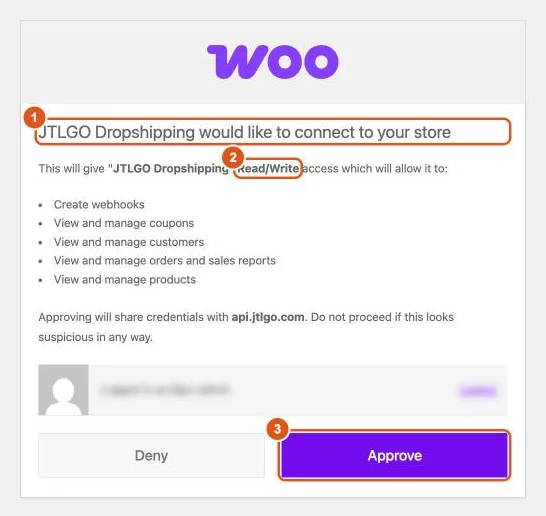
- The app asking for access: JTLGO Dropshipping.
- Access: Read/Write. JTLGO needs it to create draft products and to read and update your orders.
- Approve.
-
Step 3: Check that the store is connected
You come back to JTLGO with the message "Your WooCommerce store is now connected." The store appears under Your stores.
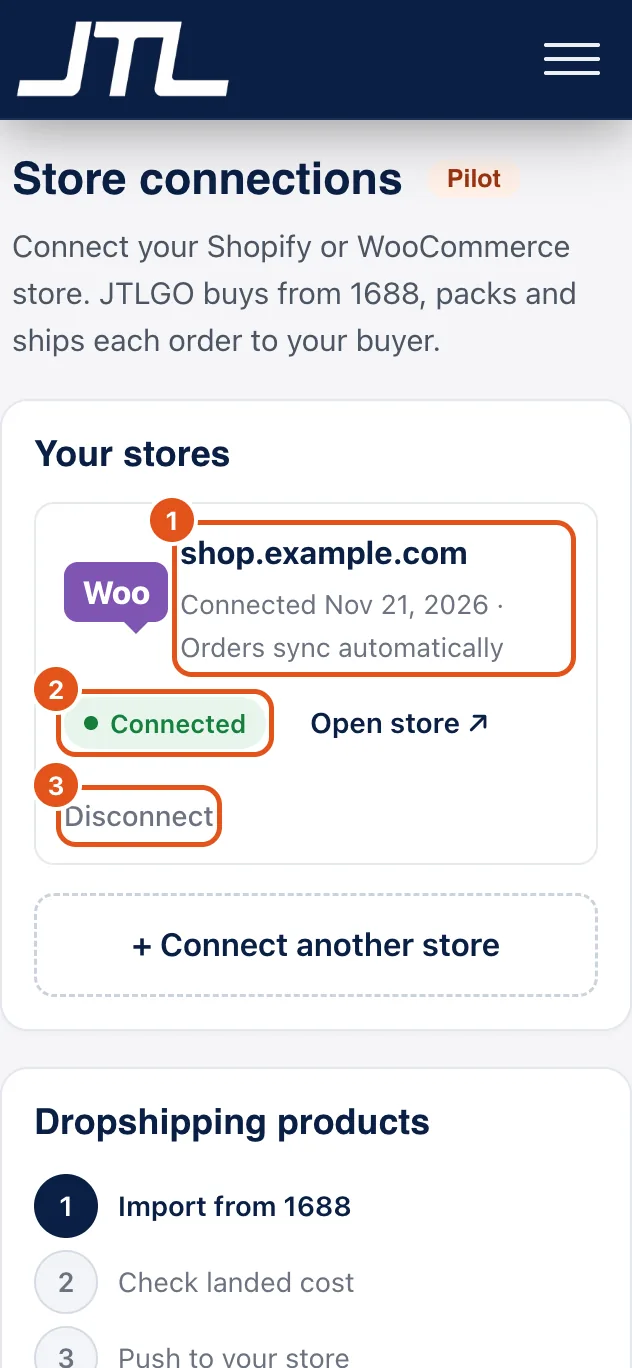
- Your store and the day it was connected.
- Connected: the link works and paid orders for JTLGO products are picked up.
- Disconnect stops sending orders to JTLGO. Afterwards, also delete the JTLGO key in WooCommerce › Settings › Advanced › REST API.
What happens next
Next, add products: import a 1688 product, check its delivered cost and publish it to your store.
Common questions
Which orders go to JTLGO?
When an order is paid and turns Processing, only the lines for products you published from JTLGO are sent to us. Your other products stay with you. The result is saved as a private note on the order.
My store sells in euros. Can I use it?
Yes. Prices are converted when you publish a product. Publishing works for stores that sell in USD, EUR, GBP or JPY. A store in another currency can connect, but cannot publish products yet.
What does "orders are checked every 15 minutes" mean?
We could not set up instant order notifications in your store. Nothing is lost: JTLGO looks for new orders in your store every 15 minutes instead.
It says the connection was not approved.
The approval page was declined or closed, or more than 15 minutes passed. Start again from Store connections.
Do I need pretty permalinks?
No. Both permalink styles work.
Related
Was this page helpful?
Still stuck? Send us a link to this page and tell us which step you’re on.
Contact support