Connect your own system to JTLGO with the API
The API lets your own software do what the store apps do: import 1688 products, get delivered prices, place orders and receive tracking numbers. Ask us to turn it on for your account, create a test key under Account › Developers and give it to your developer with the API guide. Create a live key when the tests work.
Where to find it on the site
- Account
On a phone, these are in the menu at the top right.
Have these ready
- A JTLGO account
- Someone who connects your software, such as your developer or your ERP provider
-
Step 1: Ask us to turn on the API
The API is in a pilot and is turned on account by account. Open Account › Developers. If you see "The API is in a pilot", contact us and we will turn it on for you.
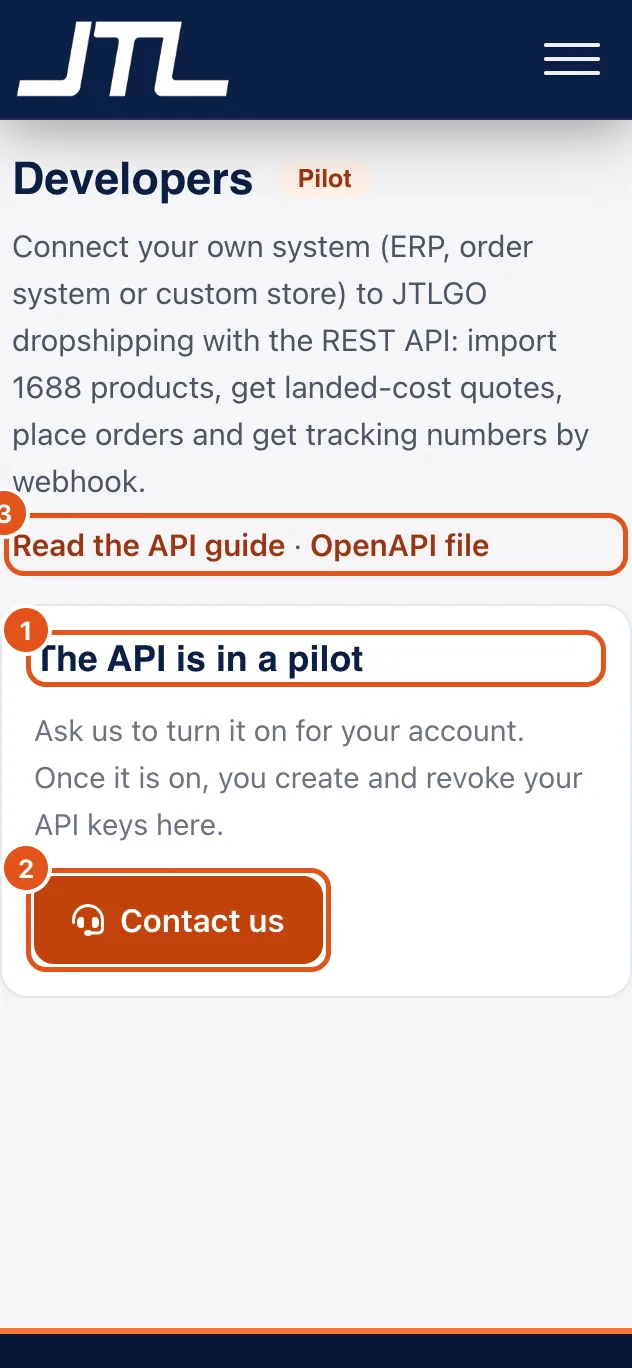
- The API is not on for this account yet.
- Contact us to turn it on.
- The API guide and OpenAPI file, for your developer.
-
Step 2: Create a test key
A key is the password your system uses to talk to JTLGO. Start with a test key: your developer can try everything and nothing is bought or charged.
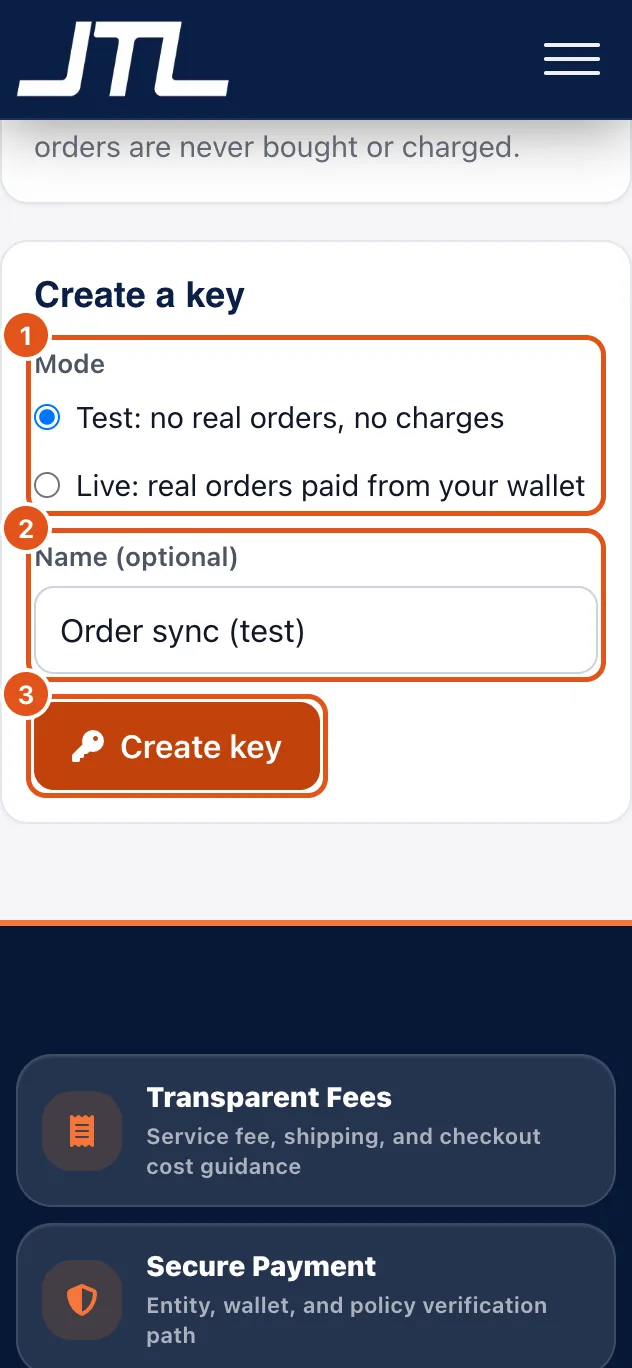
- Test: no real orders and no charges. Live: real orders, paid from your wallet. Choose Test first.
- A name that tells you what the key is for.
- Create key.
-
Step 3: Copy the key and keep it safe
The key is shown only once. Copy it now and pass it to your developer in a safe way. If it is lost, revoke it and create a new one.
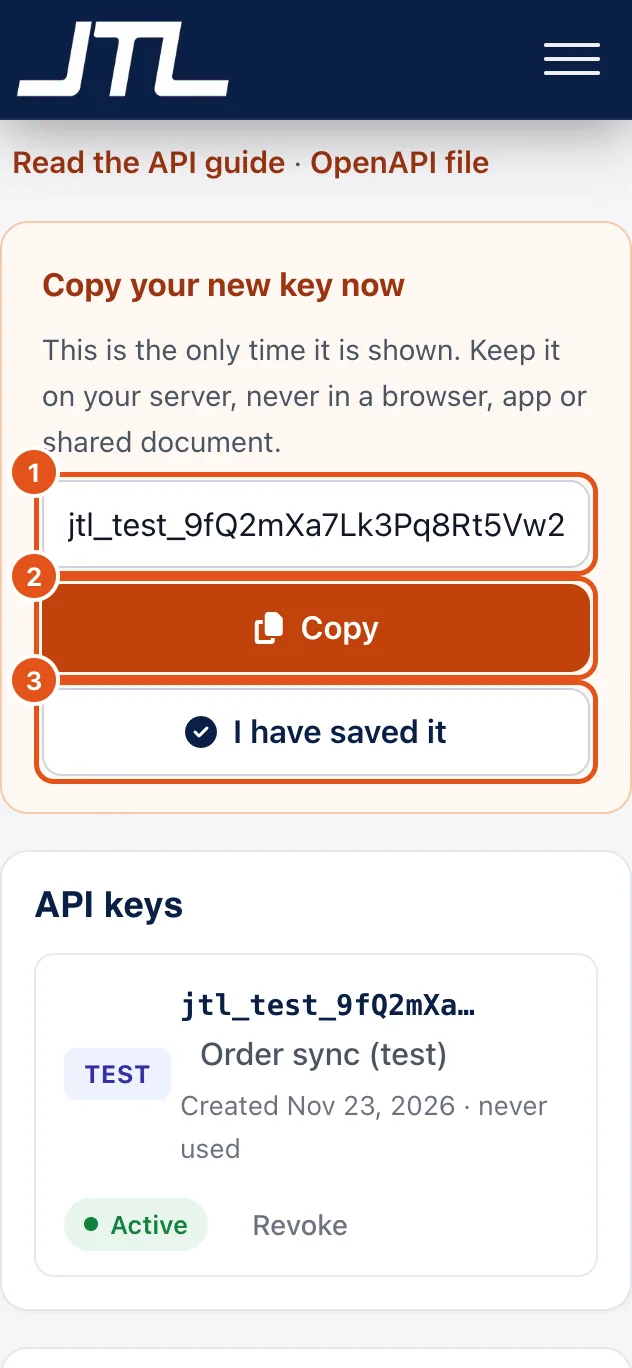
- Your new key. It is not shown again.
- Copy. Send it through a password manager or another private channel, never by public chat or in a website, app or shared document.
- Click I have saved it when you are done; the key disappears from the page.
-
Step 4: Give your developer the API guide
Send your developer the key and the address of the API guide, api.jtlgo.com/open/docs. It explains every request with examples. Your developer can also have JTLGO call your system when an order is paid or shipped.
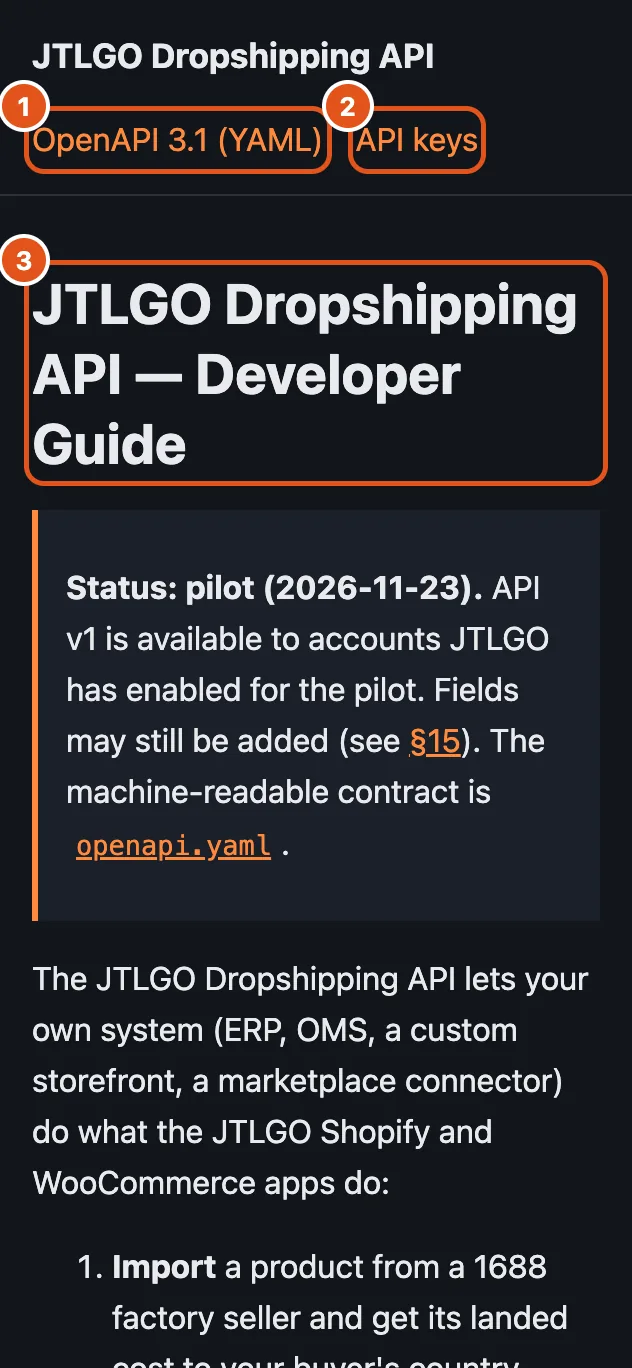
- The OpenAPI file: developer tools can read the whole API from it.
- API keys: a shortcut back to Account › Developers.
- The developer guide: what the API does, how to send requests and how to test.
-
Step 5: Go live and look after your keys
When test orders work, create a live key and switch your system to it. Live orders are real: they are paid from your JTLGO wallet, bought and shipped.
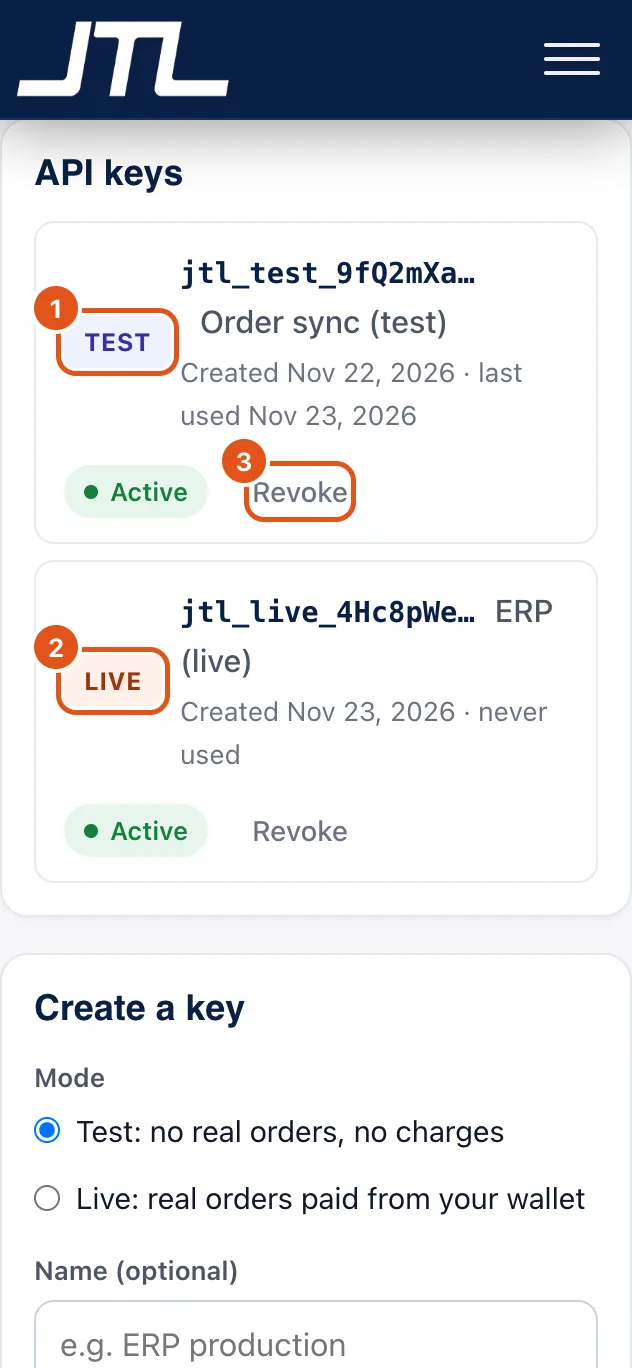
- A test key.
- A live key: real orders, paid from your JTLGO wallet.
- Revoke a key you no longer use or that may have leaked. It stops working at once and cannot be restored.
What happens next
Keep enough money in your JTLGO wallet for live orders. An order that cannot be paid waits until you add money.
Common questions
Do I need the API if I sell on Shopify or WooCommerce?
No. Connect your store under Store connections instead; the API is for systems that are not Shopify or WooCommerce, or for teams that want to automate more.
What happens to a test order?
Nothing is bought, shipped or charged. Your developer can move it through each status to test your system. Product imports in test mode still read real 1688 data.
How many keys can I have?
Up to 10 active keys. Give each system its own key so you can revoke one without stopping the others.
Are there limits?
120 requests a minute per key, and 10 product imports a minute and 300 a day per account.
A key may have leaked. What do I do?
Revoke it under Account › Developers right away, create a new key and give it to your developer.
Related
Was this page helpful?
Still stuck? Send us a link to this page and tell us which step you’re on.
Contact support