Connect your Shopify store to JTLGO
While the JTLGO app waits for Shopify App Store approval, Shopify stores join through our pilot. Send us your store address first. When we confirm, connect the store from Store connections in your JTLGO account and approve the app in Shopify. Then you import products and send orders from inside Shopify.
Where to find it on the site
- Dropshipping
- Your store connections
On a phone, these are in the menu at the top right.
Have these ready
- A JTLGO account with a verified email
- A Shopify store and a staff login that can install apps
- Our message that your store can join the pilot
-
Step 1: Ask us to add your store to the pilot
The JTLGO app for Shopify is waiting for approval in the Shopify App Store. Until then we add Shopify stores one by one. Send us your store address (your-store.myshopify.com) on WhatsApp or through Contact us. We reply when your store can be connected.
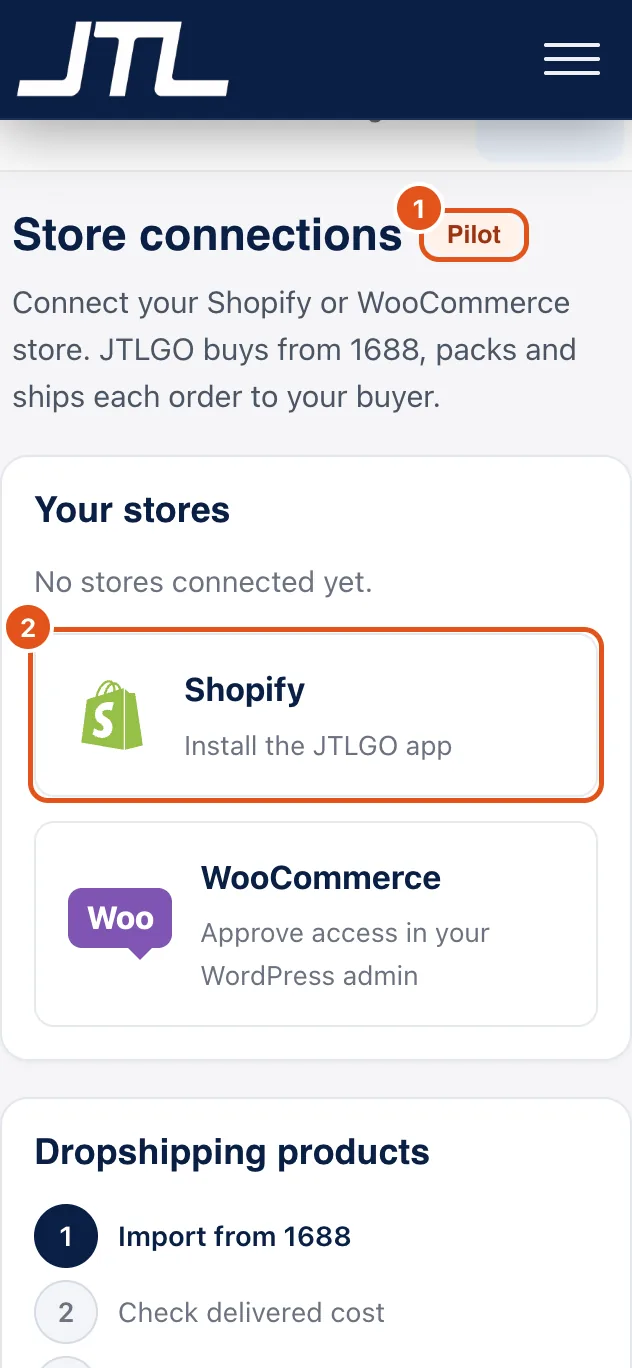
- Pilot: store connections are open to pilot stores for now.
- Shopify: wait for our message before you click Connect.
-
Step 2: Connect the store from your JTLGO account
When we confirm, open Store connections in your JTLGO account, choose Shopify, enter your store address and click Connect Shopify store. Shopify asks you to install JTLGO Dropshipping. Approve every permission within 10 minutes; the store is then linked to this JTLGO account.
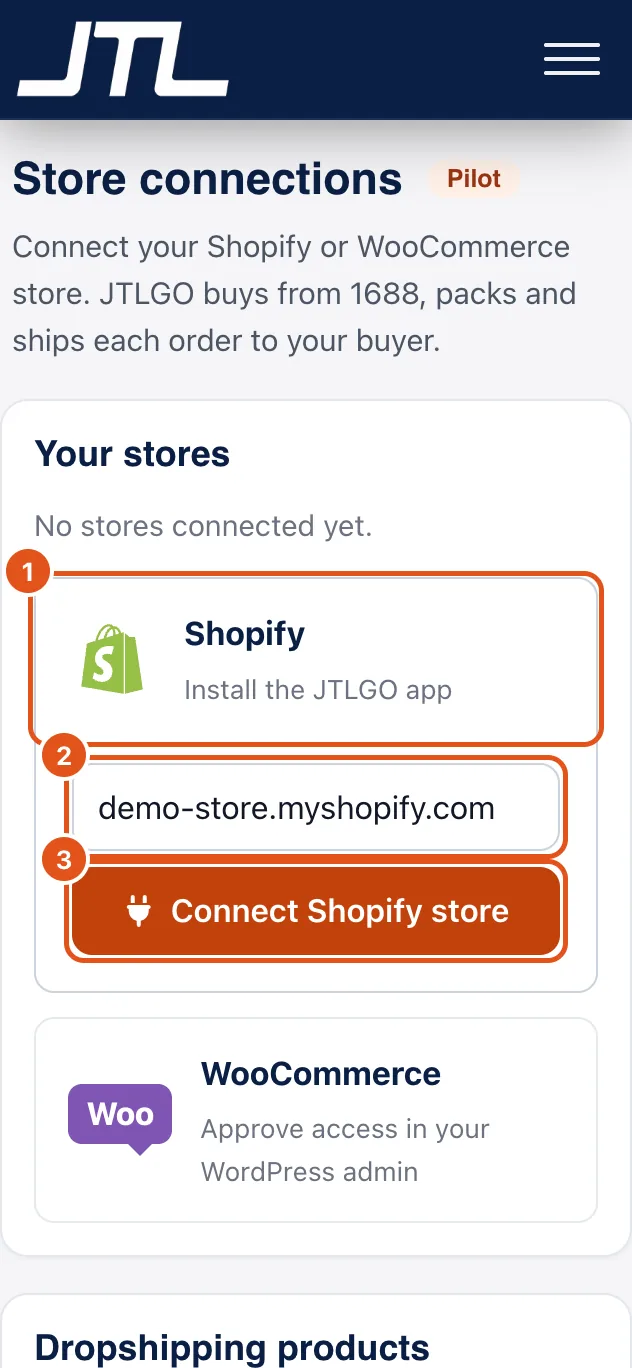
- Choose Shopify.
- Your store address: your-store.myshopify.com, or just your-store.
- Connect Shopify store opens Shopify. Approve every permission the app asks for.
-
Step 3: If the app asks, link your JTLGO account
If you open the app in Shopify before the store is linked, it asks which JTLGO account pays for your orders. Click Sign in or create a JTLGO account; jtlgo.com opens in a new tab. The link works for 30 minutes, and the app page updates by itself once the store is linked.
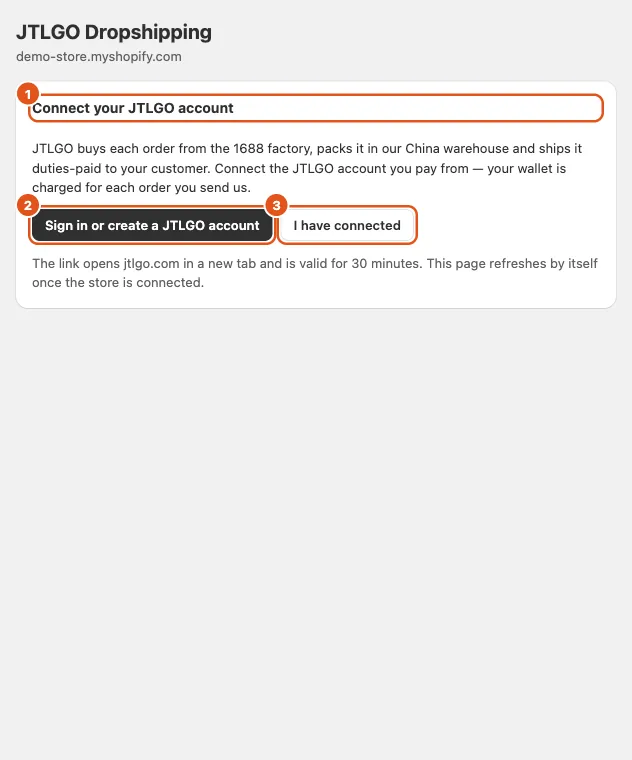
- Connect your JTLGO account: the account whose wallet pays for your orders.
- Sign in or create a JTLGO account opens jtlgo.com in a new tab.
- I have connected reloads the page if it has not updated by itself.
-
Step 4: Import and publish products in Shopify
In the app's Products tab, paste a 1688 link and choose the country you sell to. Each product shows its delivered cost; set your markup and add it to your store as a draft.
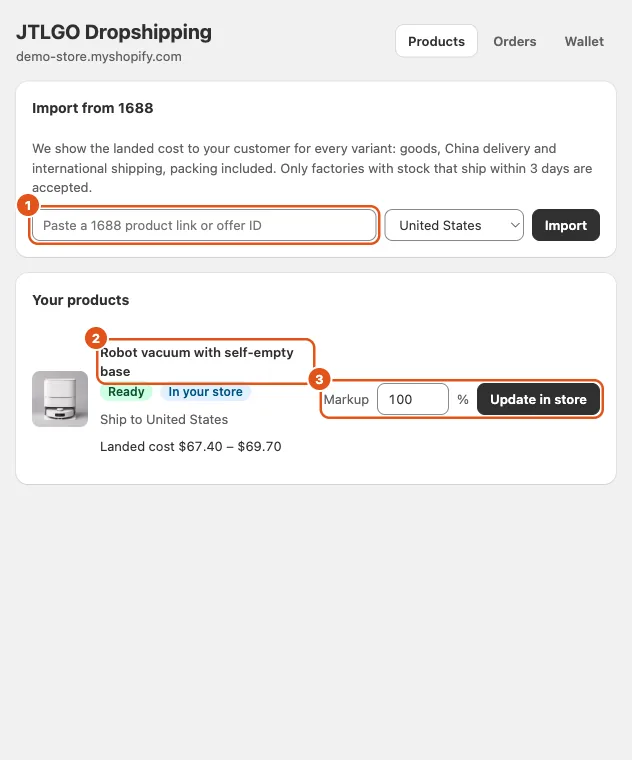
- Paste a 1688 product link or offer ID, choose the country and click Import.
- The product title.
- Your markup and the button that adds or updates the product in your store.
Tip: Shopify gets the price in US dollars without conversion. If your store sells in another currency, set the price in Shopify before you make the product live. Products that need a weight are completed on jtlgo.com.
Terms used on this page
- Pilot
- An early stage of the Shopify connection. We add stores one by one and help each of them get started.
- Shopify App Store
- Shopify's official place for apps. Once the JTLGO app is approved there, you can install it yourself without asking us.
- JTLGO Dropshipping app
- The JTLGO app inside your Shopify admin. You import products and send orders to JTLGO from it.
- Draft product
- A product saved in your store but not yet shown to shoppers. You check the price and make it live yourself.
- Delivered cost
- What one piece costs you once it reaches your customer: goods, China freight, international shipping and handling.
- Markup
- What you add on top of the delivered cost to get your selling price.
What happens next
Shopify does not send orders to JTLGO on its own. For each paid order, click Send to JTLGO in the app's Orders tab, or Request fulfillment on the order in Shopify. The order is paid from your JTLGO wallet.
Common questions
When can I install the app myself from the Shopify App Store?
As soon as Shopify approves it. This guide will then show that way too. Until then, ask us first so we can add your store to the pilot.
Why does Shopify say some variants are not assigned to JTLGO fulfillment?
Publishing assigns each variant to the JTLGO Dropshipping location in your store. If that did not work for a variant, its orders stay with you. Publish the product again, or contact us.
The connection link expired.
The link works once and for 30 minutes. Open the app in Shopify again to get a new one.
Can one Shopify store be linked to two JTLGO accounts?
No. A store can be linked to one JTLGO account at a time.
Related
Was this page helpful?
Still stuck? Send us a link to this page and tell us which step you’re on.
Contact support